

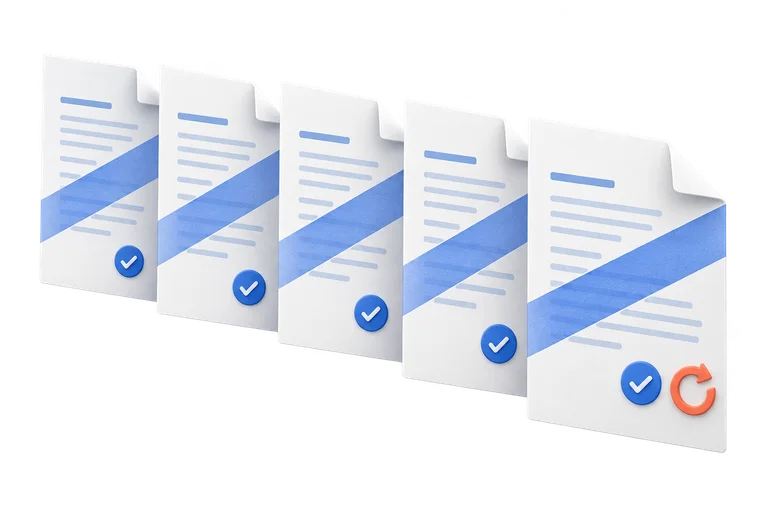
One setup for several Word files
Apply the same saved watermarks to up to five DOC or DOCX files. Each document has its own result, so a failed file can be retried without repeating the successful ones.
Add text and image watermarks to Word documents online to label drafts, identify confidential files, and show your brand.
Made for everyday document work
From a single draft label to a batch of branded reports, prepare text and image watermarks in one workspace, then download the Word files you need.
Apply the same saved watermarks to up to five DOC or DOCX files. Each document has its own result, so a failed file can be retried without repeating the successful ones.

Start with a standard text watermark or logo, then use custom watermarks for placement, rotation and repeated patterns. Save up to five configurations and edit each one before converting.
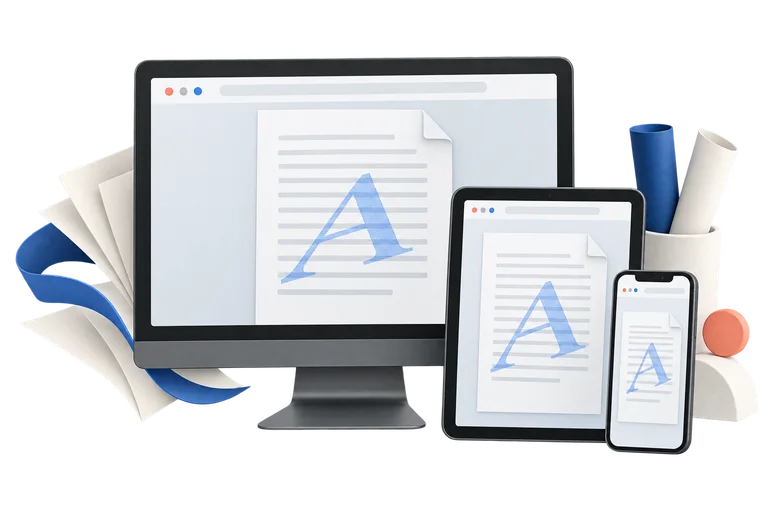
Open the tool on a desktop, tablet or phone, upload your files and choose your settings. The current watermark features require no subscription, credit card or account. Files are processed by the online service.
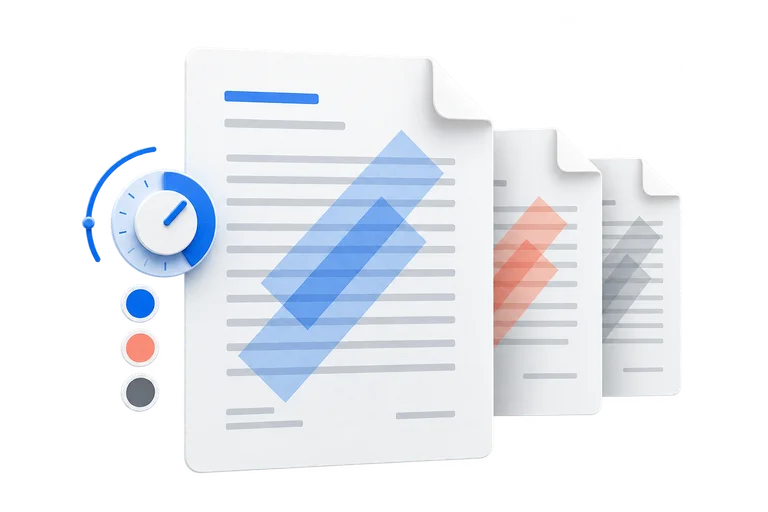
Compare text, colors, angles and image effects in a live style preview. Switch between single-page and multiple-page views to explore scope. The preview uses sample pages; check the downloaded file for its actual layout.
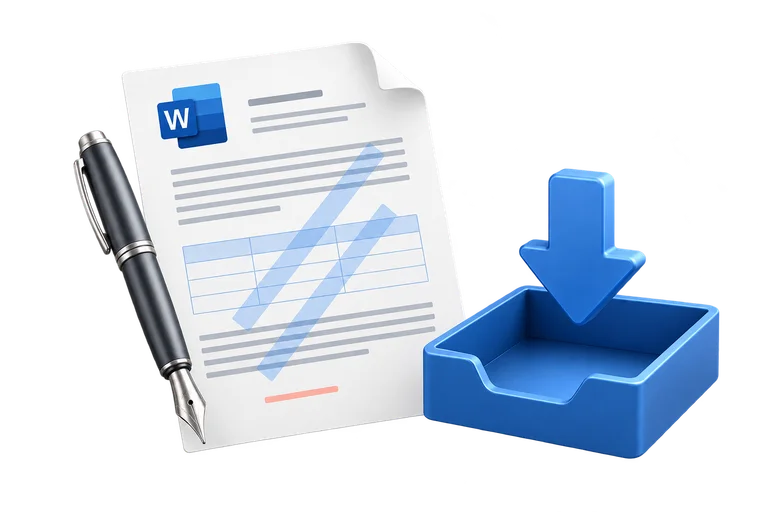
Download the watermarked copy in Word format and open it in your document editor. Keep your original separately and review tables, fonts, headers and page breaks before sharing, especially in complex documents.

Each encrypted document can have its own opening password. Random storage names and scheduled cleanup support a temporary workflow. Read our Privacy Policy for file access and retention details.
Watermarks in practice
Make the purpose of a document clear before it changes hands. Choose a visible label or a logo to suit the audience and the stage of your work.

Proposals · Reports · Presentations
Add a company logo to proposals and reports, or label internal review copies before sending them to colleagues.
Drafts · Negotiation · Internal review
Use DRAFT or CONFIDENTIAL labels to communicate a copy’s status. A visible label does not enforce access restrictions.

Theses · Coursework · Research
Identify review versions of a thesis, coursework or research paper with an author name, institution logo or draft label.

Manuscripts · Samples · Client review
Mark manuscripts, sample chapters and client review copies so readers can distinguish work in progress from the final version.
HOW IT WORKS
Start with your Word files. Finish with watermarked copies, ready to share.
Drop in up to five DOC or DOCX files. For protected documents, add the password to the matching file.
Choose text or a logo, adjust its appearance, then save your watermark. Use the sample preview to check the style.
Review up to five saved watermarks, then apply them to all your uploaded files in one batch.
Download and check each Word file. If a file fails, retry just that file; your other results stay ready.
A watermark is a visible label. It does not encrypt a document or prevent someone from copying or editing it.
Real Word output
These pages were rendered from DOCX files converted by our watermark service using the same public sample. Open an image to inspect the full page, or download the Word copy to compare it with the original.
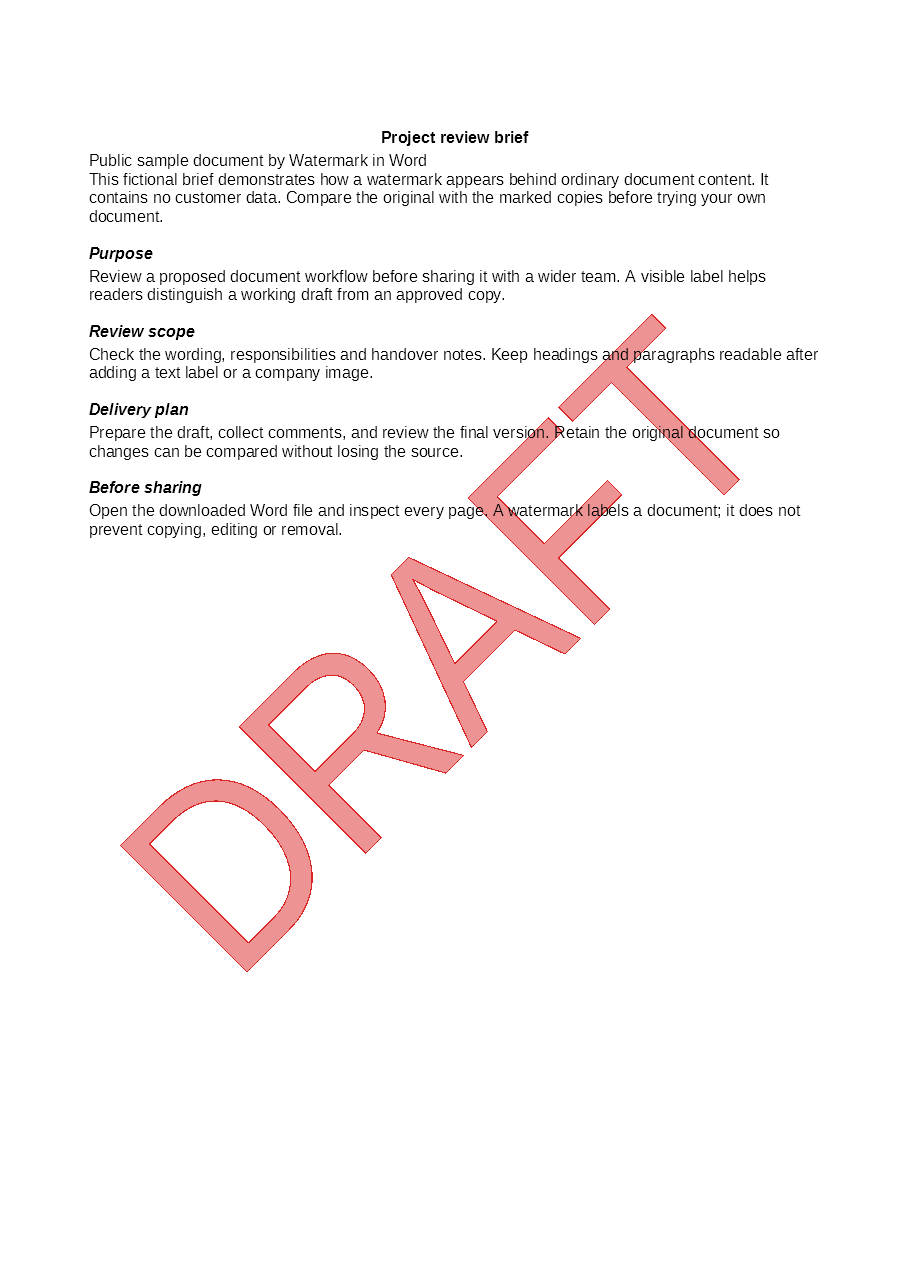
DRAFT in red, with Auto font size, diagonal layout and semi-transparency. A clear status label for a review copy.
Download marked DOCX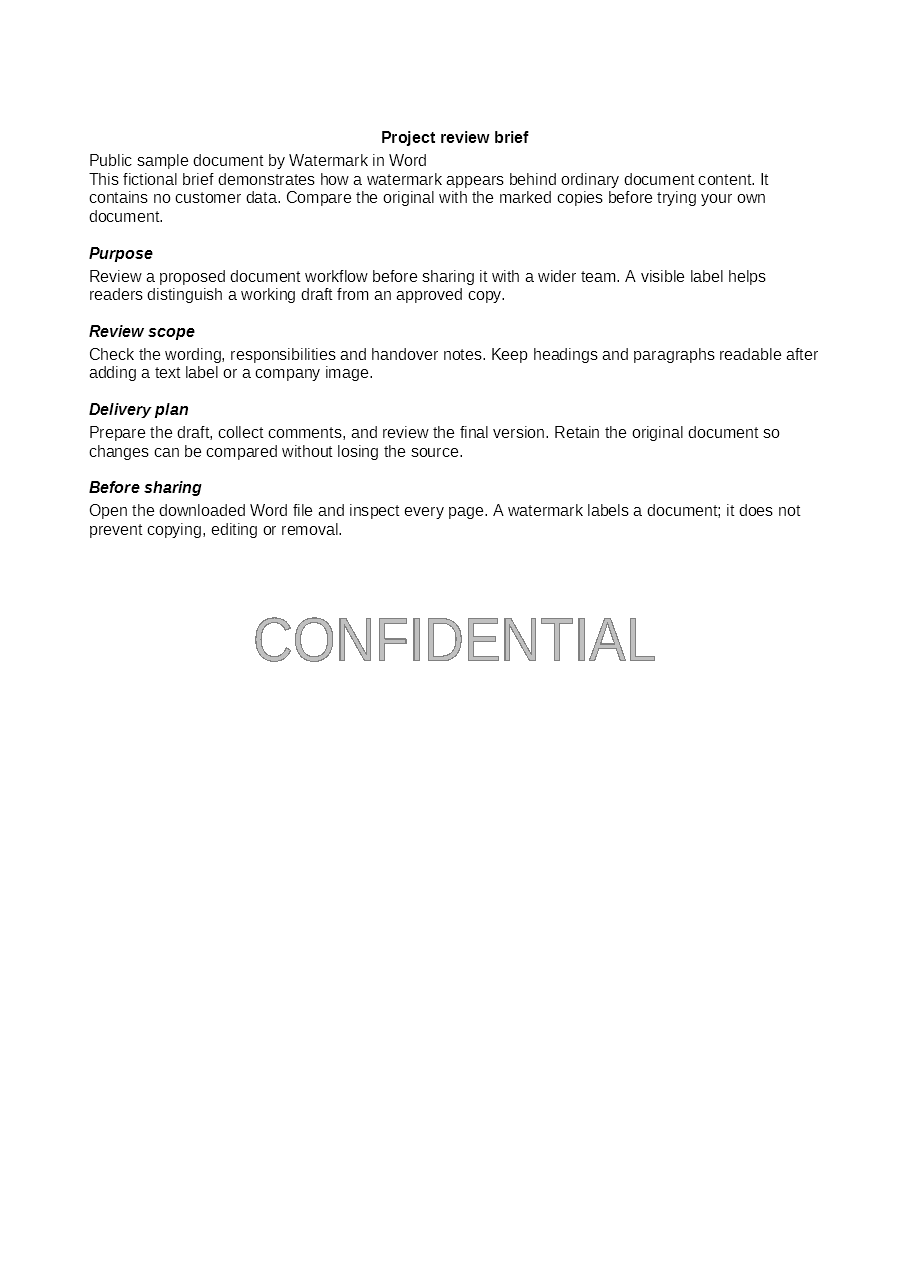
CONFIDENTIAL in gray, 36 pt, horizontal and semi-transparent. A visible handling label; it does not restrict access.
Download marked DOCX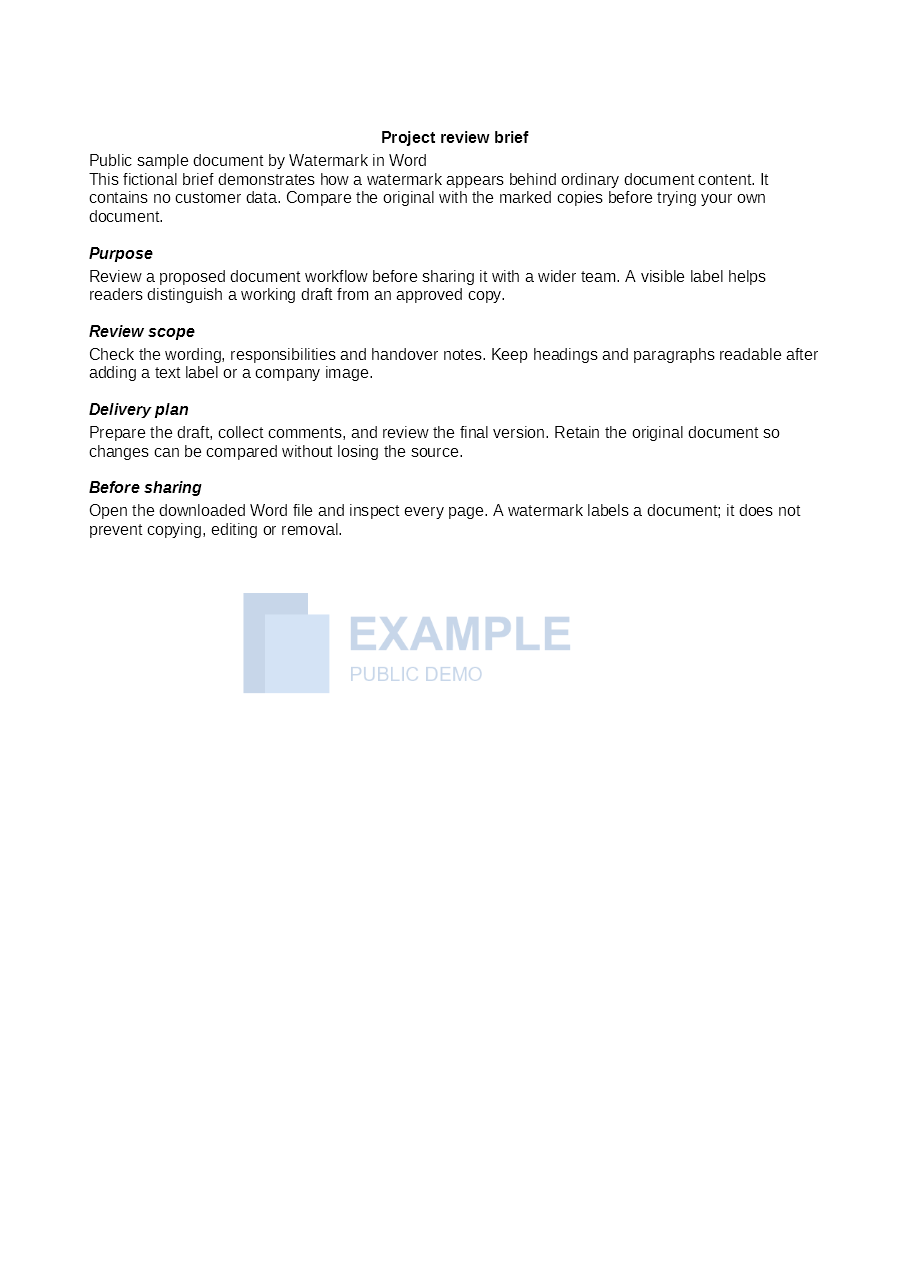
A custom image watermark centered behind the text, 300 pt wide with 25% opacity and its original aspect ratio.
Download marked DOCXUse the online tool for a batch of documents, or follow the desktop Word steps. These guides cover the settings, sample results and common problems.
Upload, save a watermark, convert, and download each result.
Windows and Mac instructions, plus what Word for the web supports.
Choose a suitable image, keep its proportions and adjust its visibility.
Check section scope, document passwords, file formats and single-file retries.
Word watermark help
Practical answers about text and image watermarks, batch processing, passwords and your files.
Upload your DOC or DOCX files, choose a standard or custom text or image watermark, and save the configuration. Review your saved watermarks, then select Convert. Download each completed file from the results panel and check it in Word before sharing.
Yes. The current text and image watermark features are free, with no subscription or credit card required. You can upload and convert documents without creating an account.
Upload DOC or DOCX documents and PNG, JPEG or WebP watermark images, up to 5 MiB per file. PDF and GIF uploads are not supported by this tool. Renaming a file does not convert its format; open it in a compatible editor and save it as DOC or DOCX first.
Keep up to five documents and five watermark configurations in the workspace. The saved configurations apply to every file in the batch. Only one standard watermark can be saved; use custom watermarks for additional labels or images. If a file fails, retry that file without repeating successful conversions.
Choose your text, font, color and layout, or upload a logo. Standard text watermarks support automatic or fixed font sizes. Custom watermarks offer placement, rotation, dimensions and tiling controls. Available options depend on the watermark type; the style preview updates as you change them.
The website applies watermarks to all sections. Custom mode lets you choose the header/footer story scope, not individual section numbers or arbitrary pages. First-page scope refers to each section; primary is not always odd pages. Some scopes enable first-page or odd/even headers. Review the downloaded file to confirm coverage.
No. It is a simulated page illustrating the saved settings, not a rendering of your file. Fonts, page dimensions, existing headers and the editor used to open the result can affect the final appearance. Keep the original and review the converted copy.
Yes, when the document encryption is supported and you provide the correct opening password. Enter it in the password field beside the relevant uploaded file. If the password is missing or incorrect, edit it in that same file row and retry only that file. Each file has its own password, even when filenames match.
Files use random storage names. Routine uploads, watermark images and results are temporary, normally cleaned up about two to three hours after upload; cleanup may be delayed. Anyone with a download link may be able to access the file, so keep links private and download results promptly.
A watermark communicates status or ownership, such as DRAFT, CONFIDENTIAL or a company logo. It does not encrypt the document, prevent copying, or guarantee that the mark cannot be removed. Only upload documents and images you own or are authorized to modify.
Trusted and featured by leading platforms worldwide






Join these amazing platforms and communities