

Real Word watermark examples
Original and converted DOCX files with reproducible DRAFT, CONFIDENTIAL and logo settings.
These examples use a fictional one-page brief created for public demonstration. They show real DOCX files processed with this tool and page images rendered from those results. No customer documents are used.
Download the original Word document. Apply each example separately; the outputs do not combine all three marks.
Reproduce a sample from start to finish
Upload the original document, then choose the recipe below. Use one Standard watermark at a time: edit that saved item to compare DRAFT with CONFIDENTIAL, or delete it before creating another Standard item. Select Convert files for each new version; a retry keeps the old submission settings.
- Choose Standard and Text watermark. Use the DRAFT shortcut, search for Liberation Sans, and retain Auto, red #DC2626, Diagonal and Semi-transparent.
- For CONFIDENTIAL, edit the saved Standard item. Replace the text, turn off Auto and set 36 pt, choose #808080 and Horizontal, and keep Semi-transparent on.
- Save the configuration, review Ready to convert and run Convert files. Open the downloaded DOCX beside the original; check the label over the paragraph and the page edges.
- For the logo, use the separate image tutorial linked below. It shows how to set one dimension without stretching the artwork.


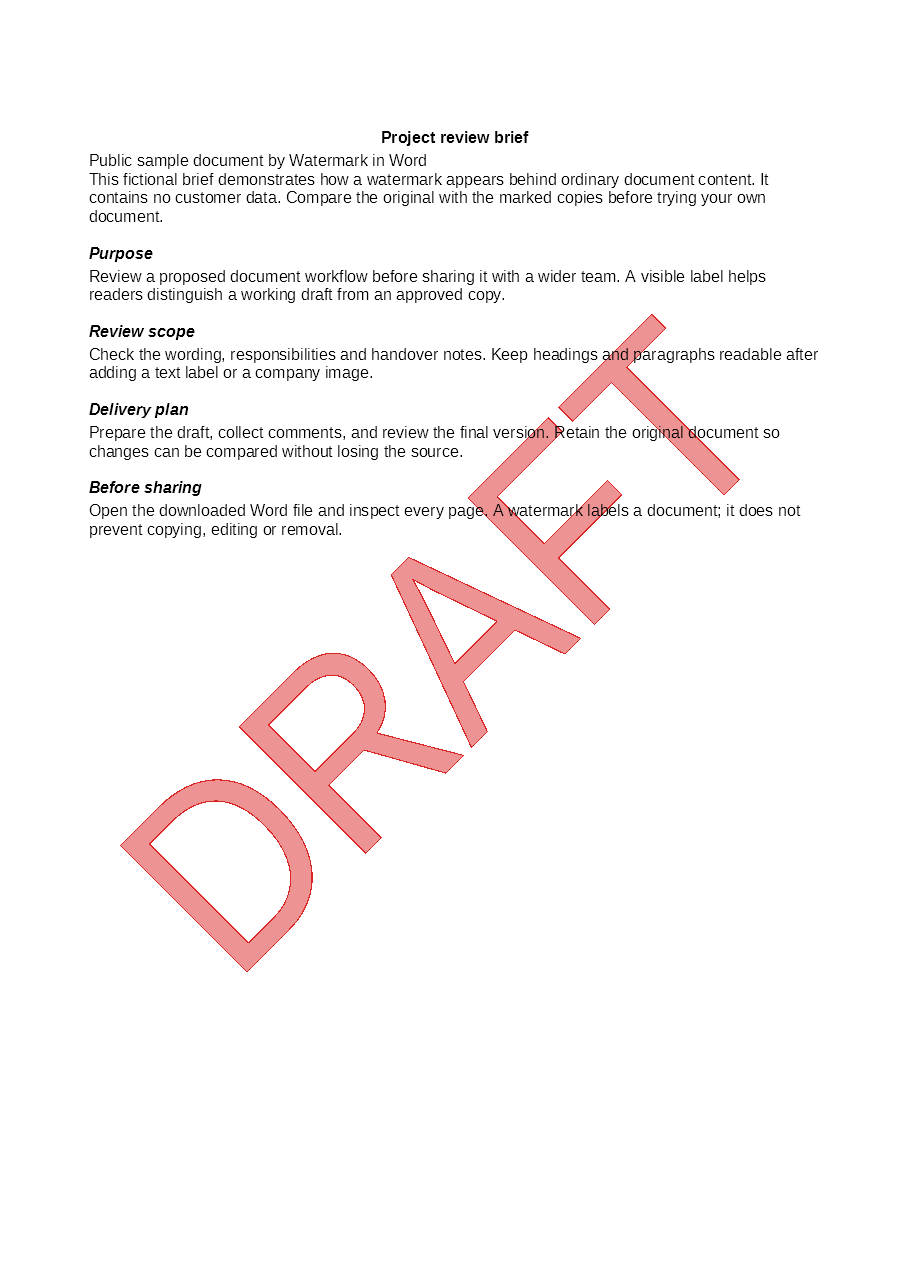
Red DRAFT label
Standard text, DRAFT, Liberation Sans, Auto size, red #DC2626, diagonal, semi-transparency on.
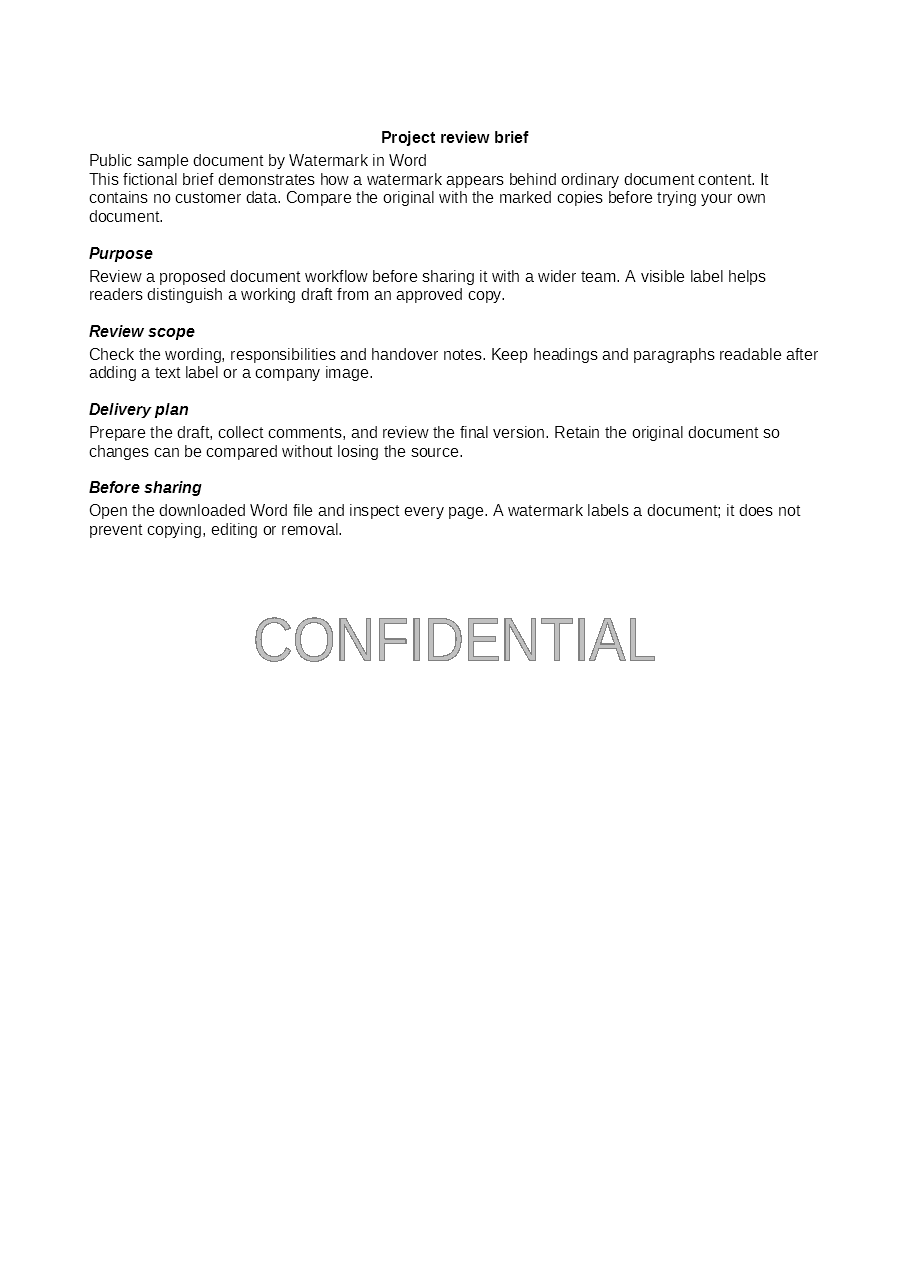
Horizontal CONFIDENTIAL label
Standard text, CONFIDENTIAL, Liberation Sans, 36 pt, gray #808080, horizontal, semi-transparency on. This label does not encrypt the file or restrict access.
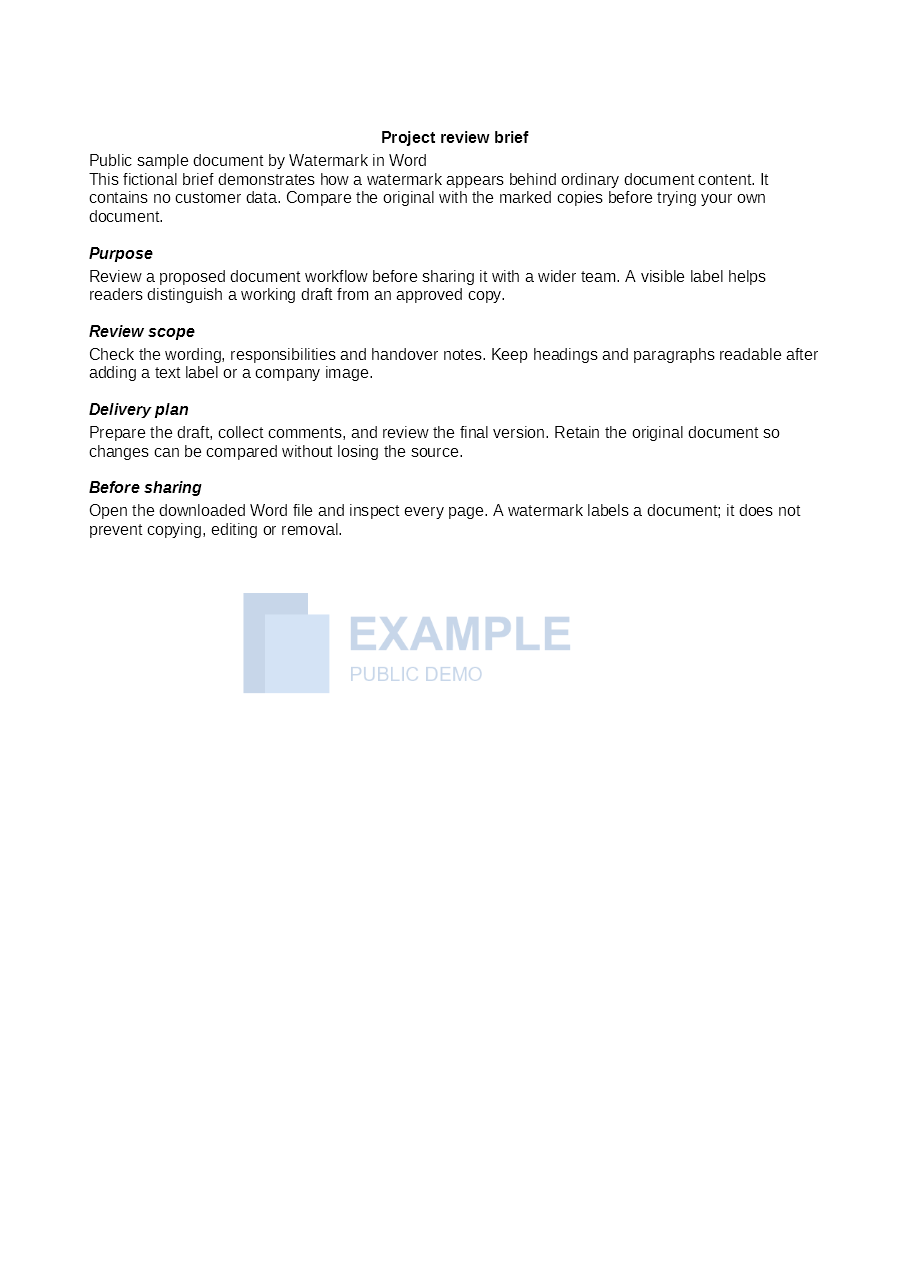
Centered logo
Custom image using the sample PNG, width 300 pt, original aspect ratio, center position, rotation 0°, opacity 25%, behind text. All sections and stories; no tiling or shadow.

Download logo DOCX. Follow the image tutorial to recreate it.
Read the samples correctly
These images show real output; the editor's Style preview is simulated. The samples demonstrate one ordinary page, not a guarantee of identical pagination for every document. Review your own output, especially tables, substituted fonts and section-specific headers.
These public example assets remain available on the website. User uploads follow the separate temporary file policy.
If your own document differs
A short label may fit this sample but extend differently across a narrow page or a different font. Use the same input and settings first, then change one option at a time. Inspect dense paragraphs, tables and later sections in your own file. The illustrated settings reference explains which options belong to Standard and which require Custom.