

Fix Word watermark and conversion problems
Diagnose passwords, unsupported or damaged files, missing watermarks and expired downloads, with screenshots of per-file errors and retry controls.
Start with the message beside the affected file. A batch can contain both successful and failed results: download the successful copies, then correct the particular file that failed. Repeating the entire batch is unnecessary when only one document needs attention.
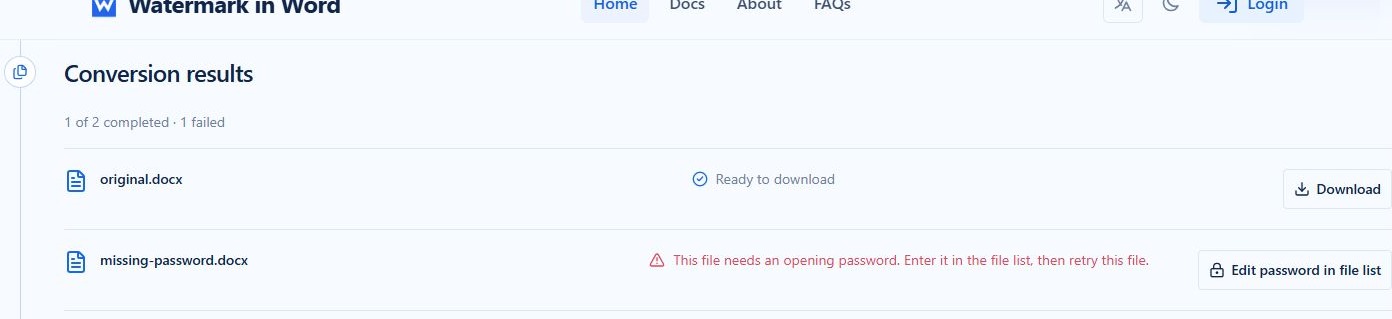
A file needs an opening password
Select Edit password in file list on the failed result. The page returns to that document's upload row, where you enter its opening password. Use the eye icon to check the characters if needed, then hide them again. The result panel intentionally does not contain a second password field.

Choose Retry file on the affected row. The service retries that file using the watermark settings from the original submission, while keeping the other results unchanged. If you change the saved watermark set, start a new conversion to apply that new set; single-file retry is not a shortcut for resubmitting different configurations.
An incorrect password is handled in the same place. Check capitalization, keyboard layout and accidental spaces. Use the password that opens the document, which may differ from an editing restriction password. Clearing the field sends no password. Do not enter a website account password unless it is genuinely also the document's opening password.
Encryption detection in the browser is advisory. It can miss a protected document or be unable to inspect it. You can enter a password even without a warning, and a warning alone does not block conversion. Passwords belong to individual file records, so two identically named files can have different passwords.
If you removed the original row after conversion, the result asks you to add the file again. Upload it, supply the password and start the appropriate conversion. A removed row cannot be edited in place.
The format is unsupported
Confirm that the source is really a DOC or DOCX document. Renaming another format does not convert its contents. Open the file in Microsoft Word and save a fresh DOCX copy, then upload that copy. If you received the file from someone else, compare its size with the original download and check whether it opens normally.
A format error does not necessarily mean the visible extension is wrong. A document can be incomplete or contain an unsupported structure even when its filename ends in .docx. If Word offers repair, work on a copy and review the repaired content before conversion. Do not keep retrying unchanged bytes and expect a different format.
The document is damaged or unreadable
Try opening the original locally first. If Word also fails, obtain a fresh copy or use Word's repair workflow before uploading again. If Word opens it, save a new DOCX copy and inspect the resulting pages. Preserve the original until you have confirmed that no text, tables or images were lost.
The result's retry action is available for errors the service considers retryable. When the file itself needs replacing, remove that upload row, upload the corrected document and convert it. Removing a row or clearing the browser list does not immediately erase its stored server copy.
Uploading fails or Convert files is unavailable
The current limits are five documents, each DOC/DOCX up to 5 MiB, and five saved watermarks. Watermark images must be PNG, JPEG or WebP up to 5 MiB. Check both the document uploads and any image upload used by a saved configuration; an unfinished image cannot be converted merely because the Word file says Uploaded.
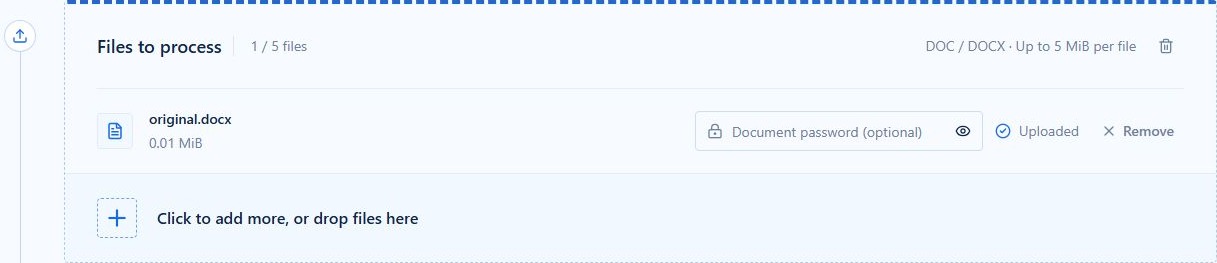
Wait for outstanding uploads, retry an upload that reports a temporary failure, and save at least one valid watermark. The editor's current draft is not part of the conversion until you choose Add watermark or Save changes. During a conversion, controls remain disabled until that run finishes.
A watermark is missing on some pages
For Custom mode, expand Section & header/footer scope and inspect Header/footer types. First-page means the first page of each section, not only page 1 of the entire document. Even-page and Primary refer to Word's header/footer types rather than an arbitrary numeric page range.

The editor currently applies custom watermarks across all sections and does not expose individual section selection. In Word, inspect section breaks, first-page settings, odd/even settings and linked headers. Changing placement to Header or Footer does not select a page range. The settings reference explains each scope choice.
The preview and downloaded document differ
Style preview uses sample pages. It cannot reproduce your uploaded document's exact margins, sections, image DPI, tables or font environment. Use it to compare settings, then open the generated Word file for the final check.
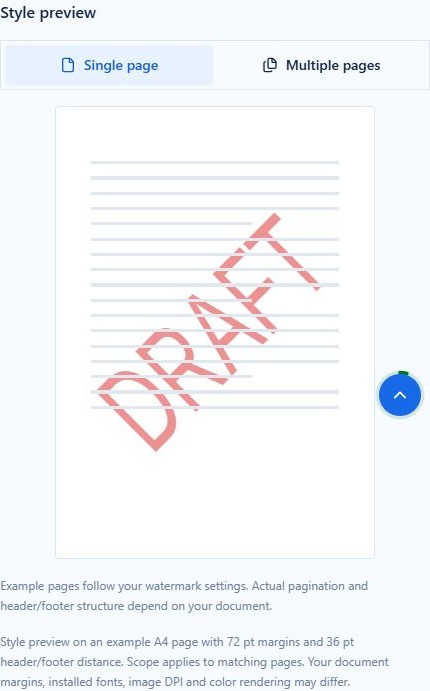
If text looks stretched, check the custom shape's Width and Height together. Standard text uses a different Auto or fixed-font-size control. If a logo is distorted, choose Set width or Set height so its proportions are preserved. If a mark is too dark or faint, distinguish Color, Opacity, Semi-transparent, Washout and Shadow transparency: they are separate controls, not interchangeable names for one effect.
For shadows, the preview uses hard-edged geometry. An image shadow follows the image rectangle, not the visible outline of a transparent logo. Do not expect a photographic soft shadow. Compare the real downloadable samples with your own output to separate a settings choice from a document-specific issue.
A download link no longer works
Uploaded and converted files are temporary. Routine cleanup removes eligible files on a schedule, so an older download link can stop working. Download successful results promptly and keep a local copy. Re-upload the original and convert again when an old temporary file has expired.
Files use random storage names. Routine uploads, watermark images and results are temporary, normally cleaned up about two to three hours after upload; cleanup may be delayed. Anyone with a download link may be able to access the file, so keep links private and download results promptly. See the Privacy Policy.
Ask for help with the right details
If the problem remains, contact support@watermarkinword.com. Include the visible error message, whether the file is DOC or DOCX, the watermark mode and type, and what you tried. Prefer a small non-sensitive reproduction. Do not post opening passwords or private download links in public reports.