

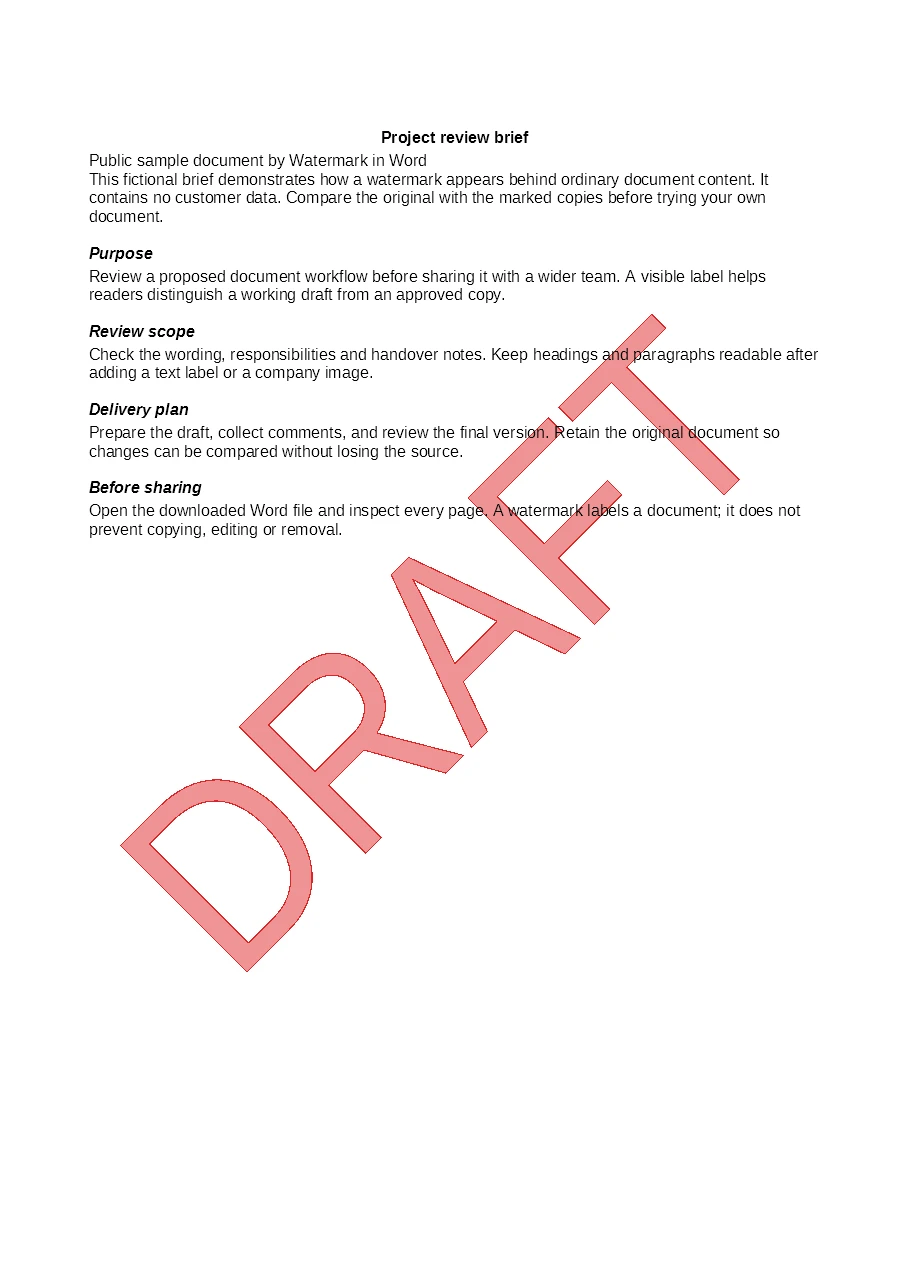
Drafts ready for review
A diagonal DRAFT label makes working copies easy to recognize before approval.
Download this Word exampleOne style. Your whole batch.
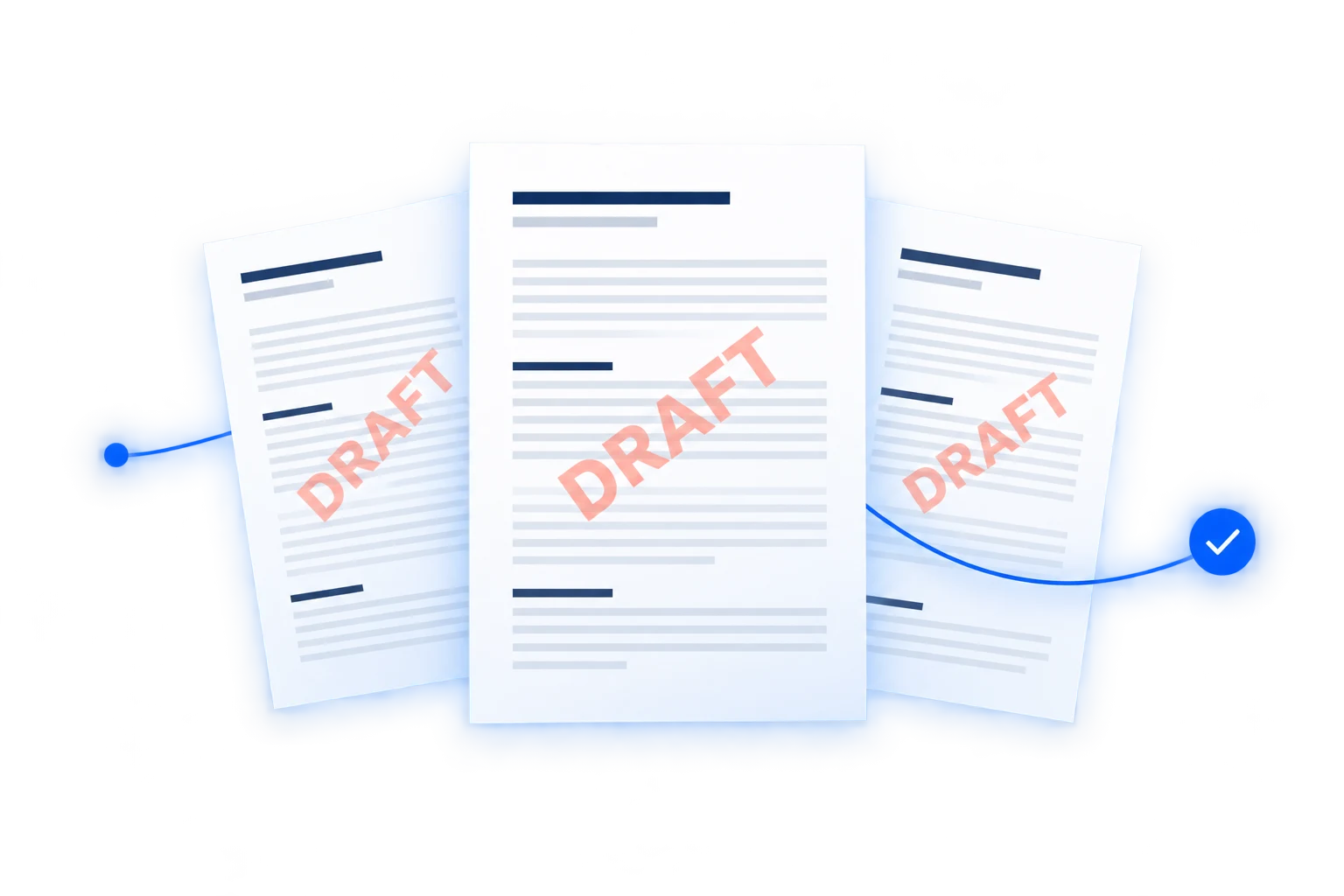
Apply the same text or logo watermark to up to 15 DOC or DOCX files. Set your style once, see each result as it finishes, and download your watermarked Word documents.
0 completed · 0 failed · Files: 0
See the output
Mark drafts, label confidential materials, or add your logo. These examples show actual converted Word pages, with downloadable files you can inspect yourself.
A diagonal DRAFT label makes working copies easy to recognize before approval.
Download this Word example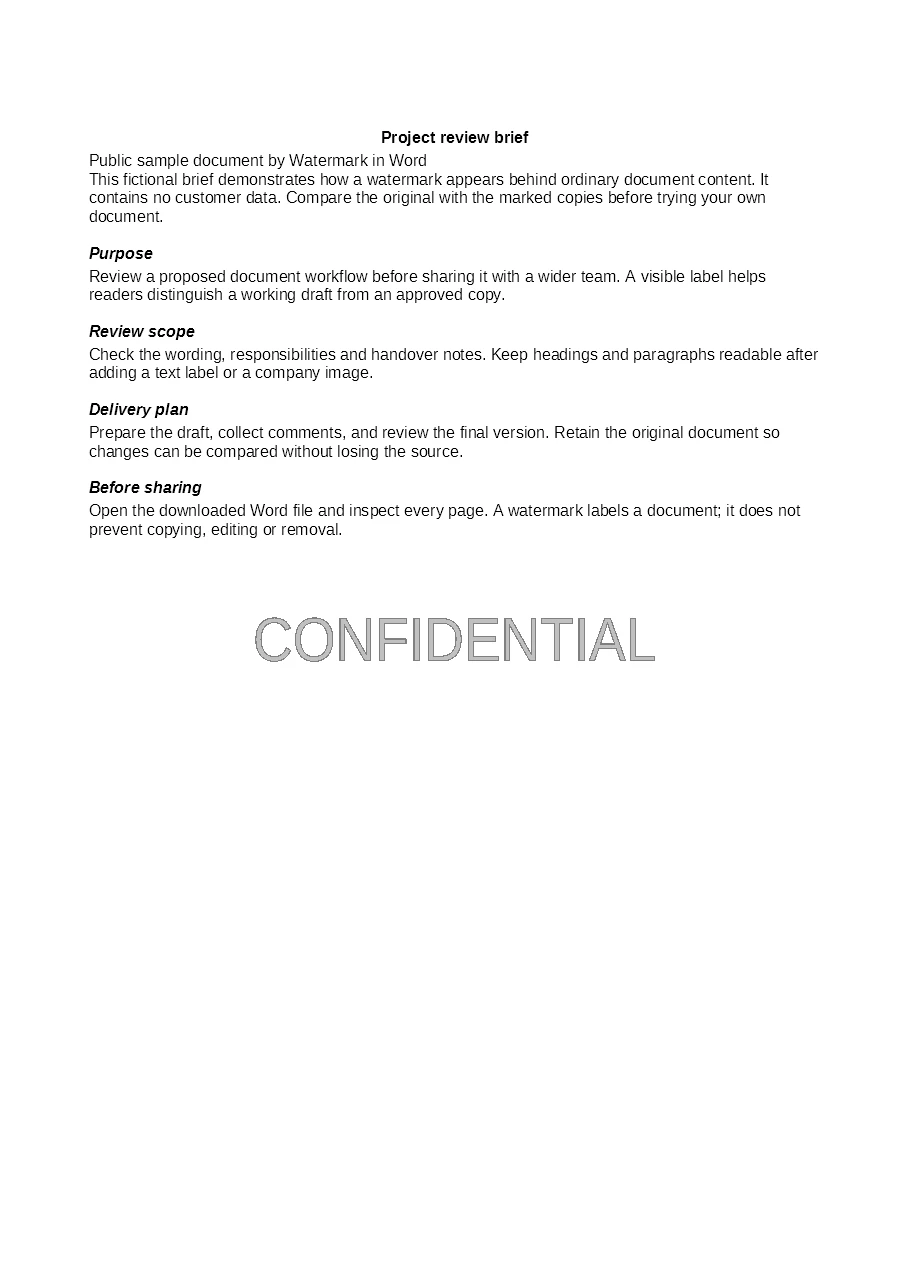
A subtle CONFIDENTIAL label adds a visible reminder to internal reports and review materials.
Download this Word example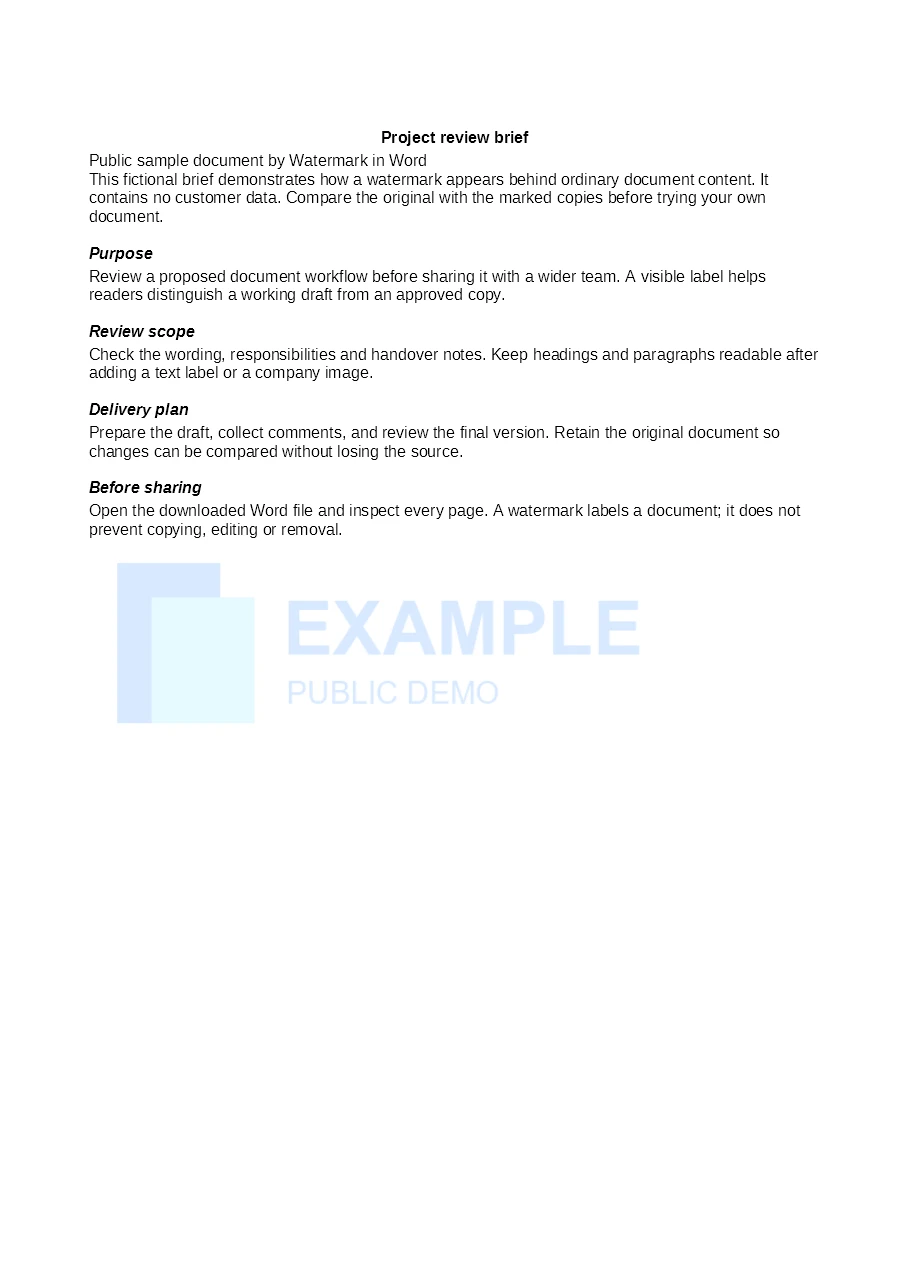
An image watermark gives related proposals and reports a consistent brand mark.
Download this Word exampleSkip repeating the same watermark setup for each document. Apply a shared style, then track the result for every file in your batch.
Choose your text or logo and apply the same settings to all selected documents.
See and download completed files without waiting for the entire batch to finish.
After the batch ends, retry a failed file without processing successful files again.
Enter each document’s opening password separately when it needs one.
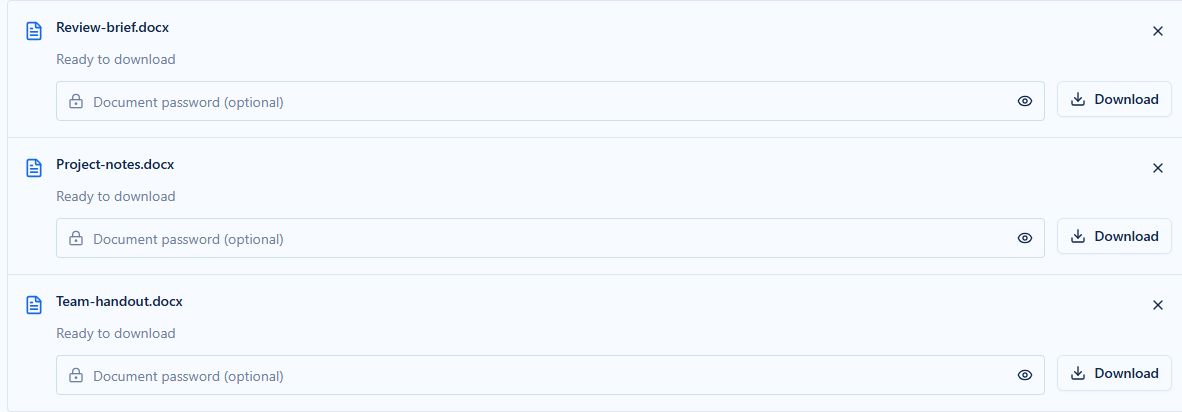
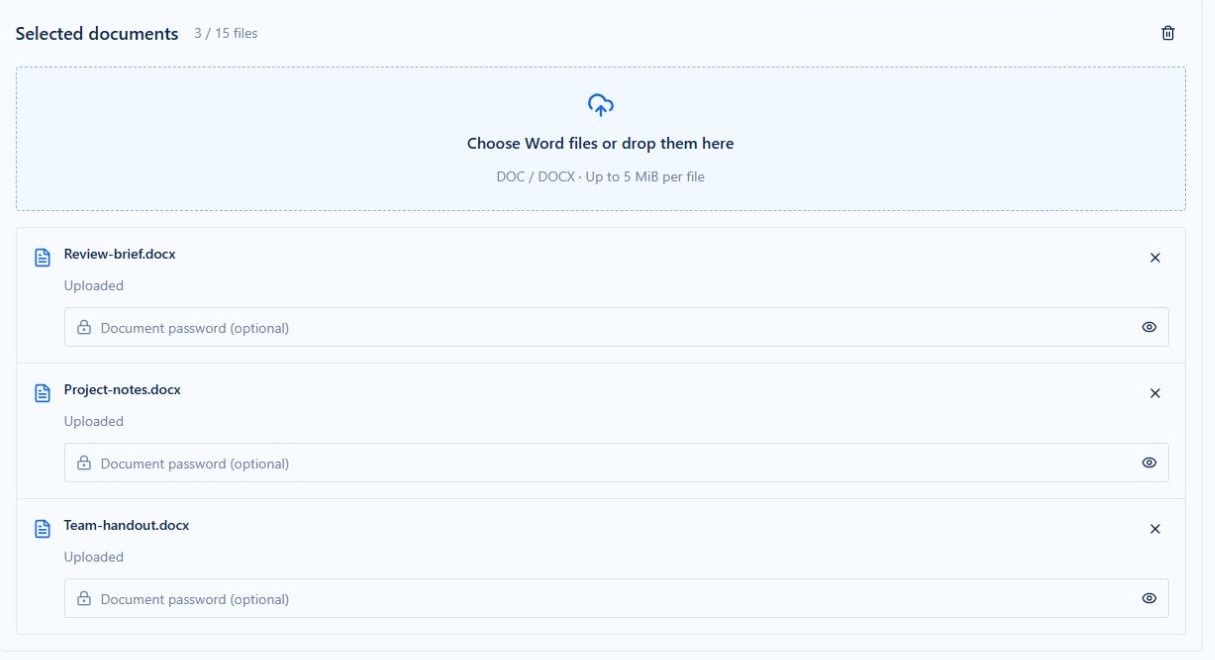
Choose up to 15 DOC or DOCX files, with up to 5 MiB per file. Add an opening password to each file that needs one.
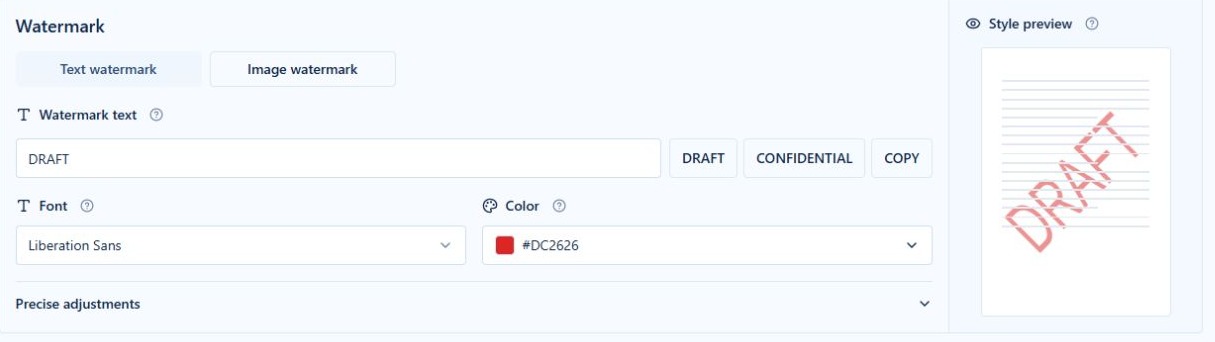
Enter text or upload a logo, adjust its appearance, and check the sample style preview. The same settings apply to every file.
Start conversion and download each successful result as it becomes available. Once the batch ends, correct any reported problem and retry the affected file.
Apply DRAFT to proposals, specifications, and supporting notes prepared for the same review.
Add a confidentiality label to reports and reference documents shared within your team.
Use your company logo across related proposals and project reports.
Mark handouts and reference documents with the same organization or course label.
Use this batch tool when several documents need the same text or logo watermark. Work directly in Word to inspect and adjust an individual document’s layout. For multiple watermarks or detailed placement controls, use our main watermark editor.
Add up to 15 DOC or DOCX files per batch, with a limit of 5 MiB per file. Larger collections can be processed in separate batches.
Yes. You can include both formats in the same batch.
Yes. One text or image watermark configuration applies to the whole batch. To use different watermarks for different groups, process each group separately.
Yes. Choose Image watermark, upload your logo, and adjust the available image settings before conversion.
Enter the opening password in that file’s entry. If it is missing or incorrect, update it and retry that file after the batch has finished.
No. Successful results stay available. After the batch finishes, correct the reported problem and retry the affected file.
The preview uses a sample page to illustrate your settings. Open the downloaded Word file to check its actual layout.
No. You can upload files, configure a watermark, and download the results in your browser.
Files are uploaded for processing and use random storage names. Routine uploads and results are temporary and are normally cleaned up after about two to three hours, though cleanup can be delayed. Download results promptly and keep download links private.