

How to Batch Watermark Word Documents: A Practical Workflow
Compare ways to add one text or logo watermark to multiple DOC and DOCX files, then follow an illustrated batch workflow with real outputs, passwords and individual retries.
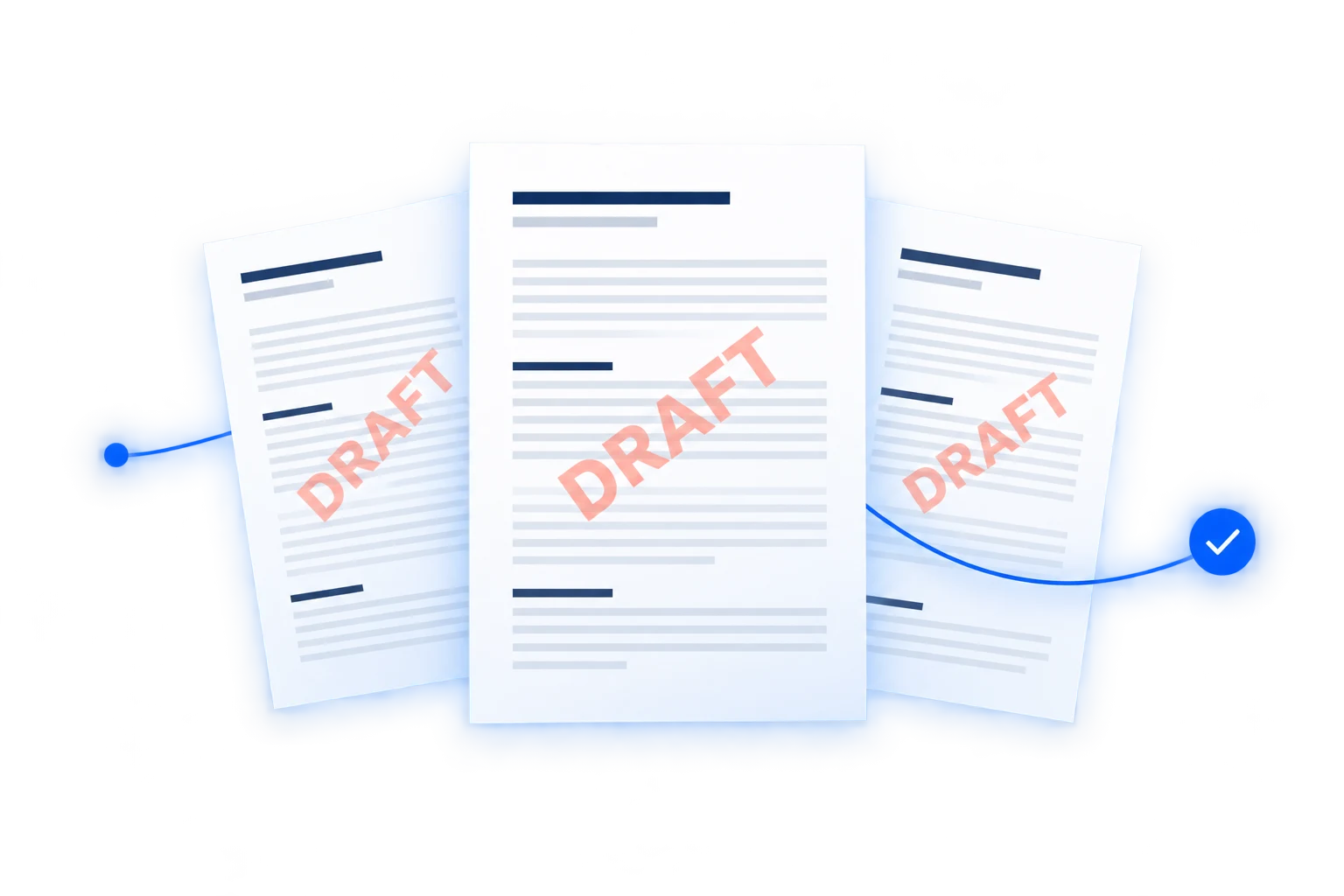
A review pack often contains more than one Word file: a proposal, a specification and a set of supporting notes. If every file needs the same DRAFT label, repeating the watermark setup in each document adds work without adding much value. Batch watermarking lets you define that shared mark once and apply it to the whole group.
The useful question is not simply which tool accepts multiple files. It is whether it accepts your input format, produces the kind of file you need, and lets you recover when one document fails. A workflow that exports page images may be suitable for viewing but unsuitable when a recipient needs an editable Word document.
This guide compares the main approaches and demonstrates our own batch Word watermark tool. We make Watermark in Word; this is a practical explanation of its fit and limits, not an independent product ranking. The comparison is based on linked product documentation reviewed on October 11, 2026, not hands-on tests of competing services.
Batch documents and watermark every page are different tasks
Adding a watermark to all pages of one report is a single-document task. Adding the same watermark to twelve separate reports is a batch task. Search results for “bulk watermark Word documents” can also include PDF and photo tools, so first check both the accepted format and the exported format.
Decide these points before choosing a workflow:
- Output: do recipients need a Word file they can continue editing, or a fixed-layout PDF?
- Design: does every document need the same text or logo, or a different recipient name?
- Volume: is this a small review pack or a recurring folder of hundreds of files?
- Handling: are the documents allowed to be uploaded to an online service?
- Recovery: can you identify and retry one failed document without repeating the successful work?
What the different approaches offer
Desktop Microsoft Word: best when you are already editing the pages
Word's ordinary watermark workflow operates on the open document. Microsoft also documents saving a custom watermark to the gallery for reuse. That helps keep a design consistent, but applying it through the normal interface still involves opening the other documents. See Microsoft's custom watermark instructions.
For one complex report, Word's direct view of actual pages is a major advantage. You can check tables, sections and headers while editing. For a large repetitive workflow, macros or approved organizational automation may be more appropriate than repeated manual steps. Those routes require setup and maintenance; they are not the same as a simple built-in “watermark this folder” ribbon action.
Online watermark tools: convenient, but check what “online” means
Watermark.ws's Word watermark guide emphasizes text or logo design, a browser workflow and applying the same mark to several files. These are useful criteria when comparing tools. Its product descriptions are its own claims; we have not verified its conversion fidelity or benchmarked its performance.
“Works in a browser” does not necessarily mean “the files never leave the device.” Our tool uploads files for server processing. Likewise, a broad claim of Word support does not answer every output question. Before committing a document set to any tool, run a representative sample and inspect the downloaded format and layout.
Desktop batch converters: useful when output conversion is part of the job
DocuFreezer's watermark guide describes a file list, an output-format choice and shared text or image operations, with additional options such as page ranges and dynamic values. This illustrates a broader document-processing workflow. Check its supported output formats for your task rather than assuming any accepted Word input will return an editable DOCX.
Such tools deserve consideration when watermarking is one step in preparing PDFs or other delivery formats. The trade-off is installing and configuring another application. Our browser tool is focused on a smaller Word-to-Word task and does not offer those dynamic-value or page-range controls in its batch interface.
Choose by the work you need to do
| Your task | A practical starting point | Check before committing |
|---|---|---|
| One report with unusual sections or detailed layout work | Desktop Word | The actual first pages, headers and section boundaries |
| Up to 15 DOC/DOCX files needing one shared text or logo mark | Our batch page | 5 MiB per file; documents may be uploaded |
| A label and logo together, or custom positioning | Our main editor | Up to five files and five saved watermark configurations |
| A large recurring folder or per-recipient wording | An approved automation workflow | Logging, recovery, templates and document compatibility |
| Fixed-layout delivery with broader conversion requirements | A suitable PDF or desktop batch converter | The final output format, not only its input list |
A practical example: mark a three-file review pack
Suppose a team needs to circulate a brief, project notes and a handout before approval. Each file should receive the same DRAFT label. The documents remain separate, with a separate download for each output.
Upload the documents together
Open Batch watermark, select the Word files and wait for each row to show Uploaded. The current list accepts up to 15 DOC or DOCX files, with 5 MiB per file. DOC and DOCX can be mixed; PDFs cannot be used as the input documents.
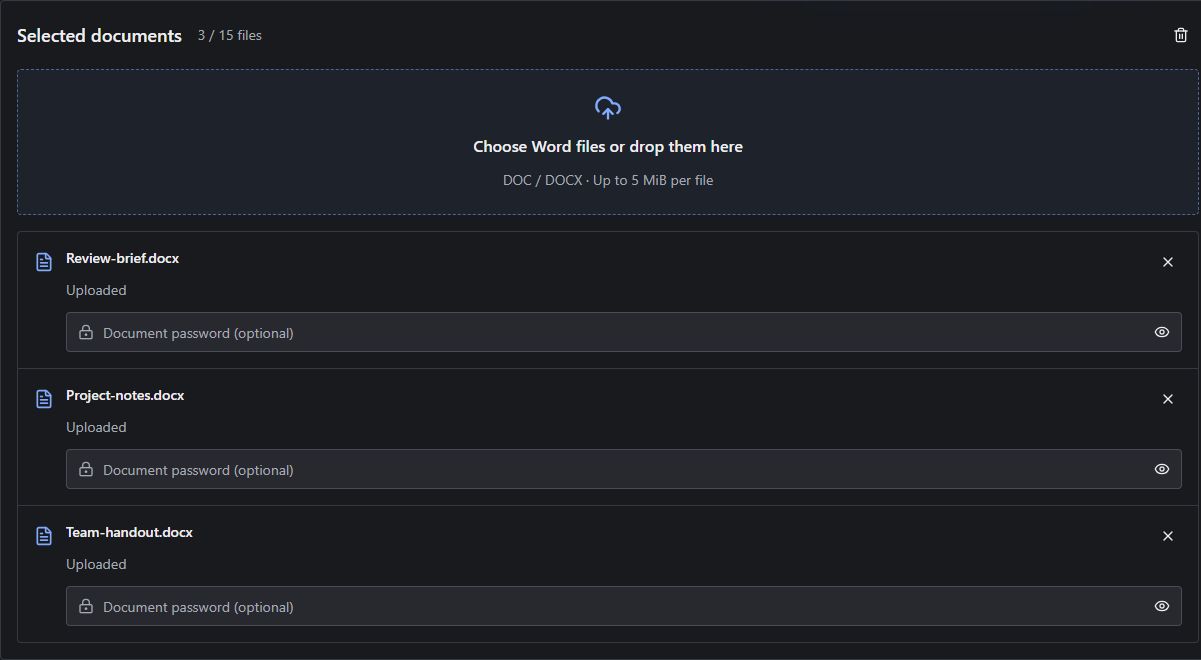
Enter an opening password beside the document that needs it. Files can have different passwords, and two files with the same name remain separate records. The browser's encryption warning is a convenience rather than a guarantee: you can provide the password even when no warning appears.
Choose one shared design
Select Text watermark and enter DRAFT. A practical starting point is Liberation Sans, red #DC2626, Auto size, Diagonal layout and Semi-transparent enabled. Font and color are immediately visible; open Precise adjustments for size, layout and semitransparency.
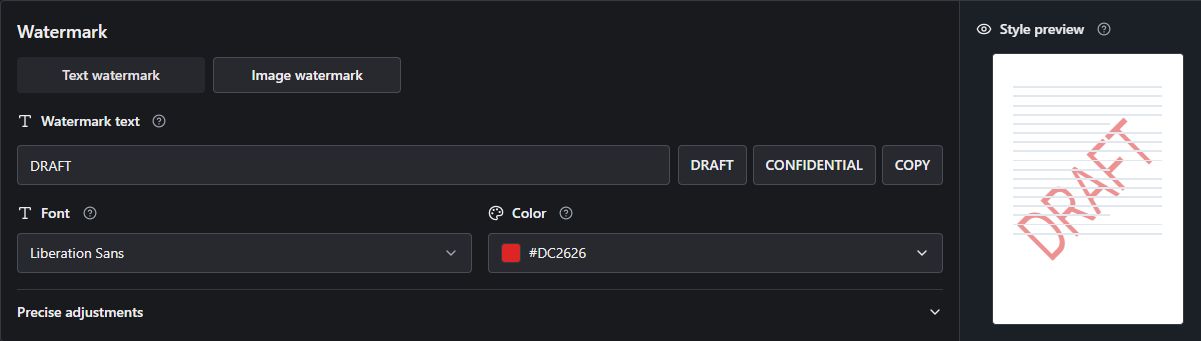
Choose Image watermark instead when the set needs a company logo. Upload a PNG, JPEG or WebP, then adjust automatic sizing or scale and Washout. The batch page applies one text or image mark, not both together. For multiple marks or custom positioning, switch to the main editor.
Convert, download and inspect
Select Convert files. Each result becomes available as its file finishes. In our actual three-document example, all three conversions succeeded and each received its own Download link.
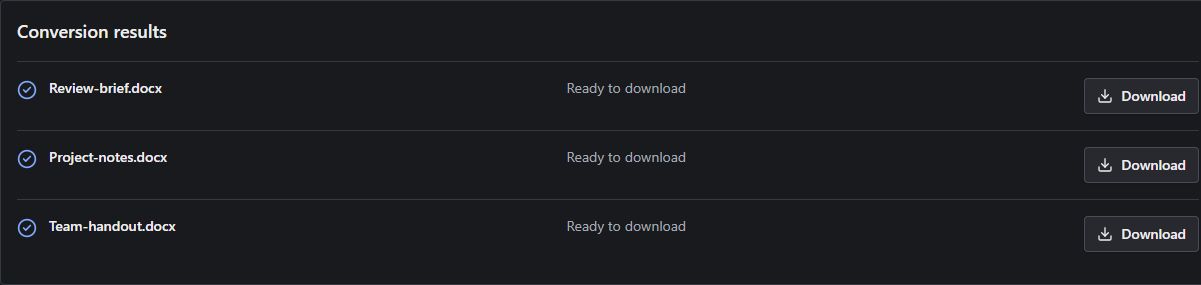
The tool currently has individual downloads rather than a Download all ZIP. Open the copies before distribution. A successful conversion tells you processing completed; it does not establish that the appearance suits every page.
For every control and the complete recovery process, use the illustrated batch tutorial.
Three useful styles, with actual Word examples
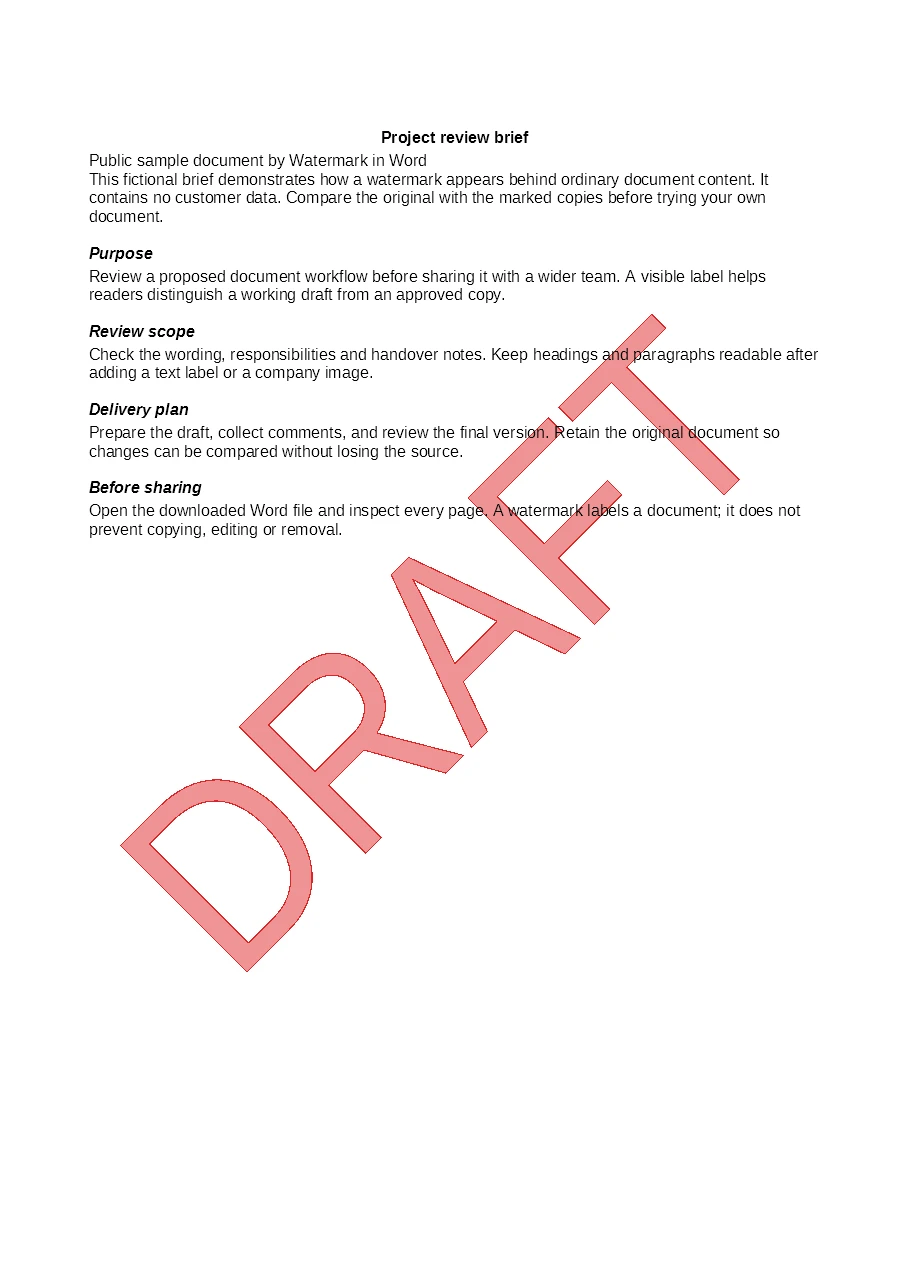
DRAFT for material awaiting approval
A diagonal DRAFT mark makes the status visible without changing the document's wording. It suits review proposals, specifications and working notes. Use a short label and enough transparency to keep dense paragraphs readable.
CONFIDENTIAL for internal reference material
A confidentiality label communicates intended handling. It is not access control: it does not encrypt a document or prevent an editor from changing or removing the mark. Combine the label with appropriate sharing permissions when documents require protection.
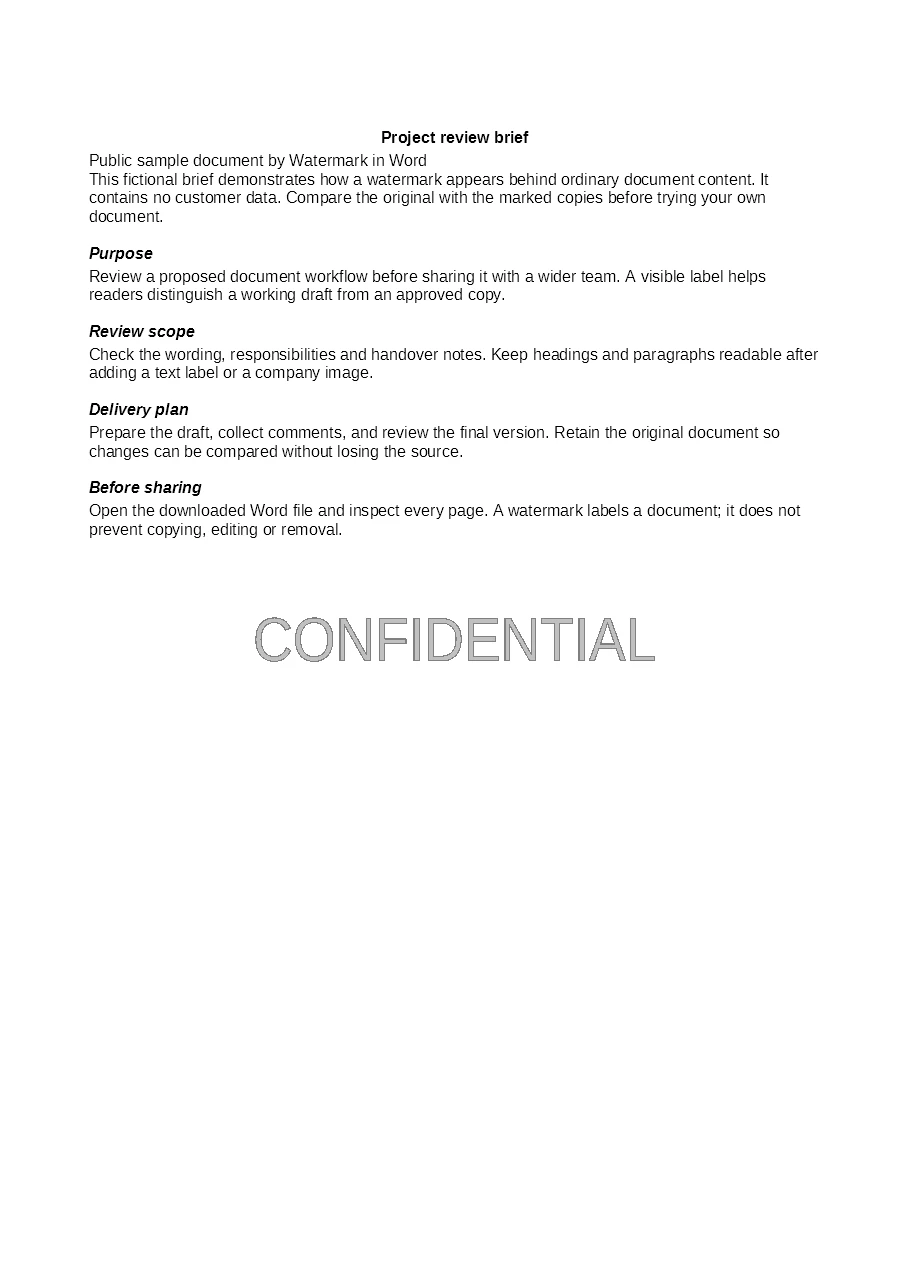
Download the CONFIDENTIAL example.
A logo for related client deliverables
A shared logo can give proposals and supporting reports a consistent identity. A transparent-background image avoids a solid rectangle around the mark. Washout can improve readability, although a very pale logo may need it turned off.
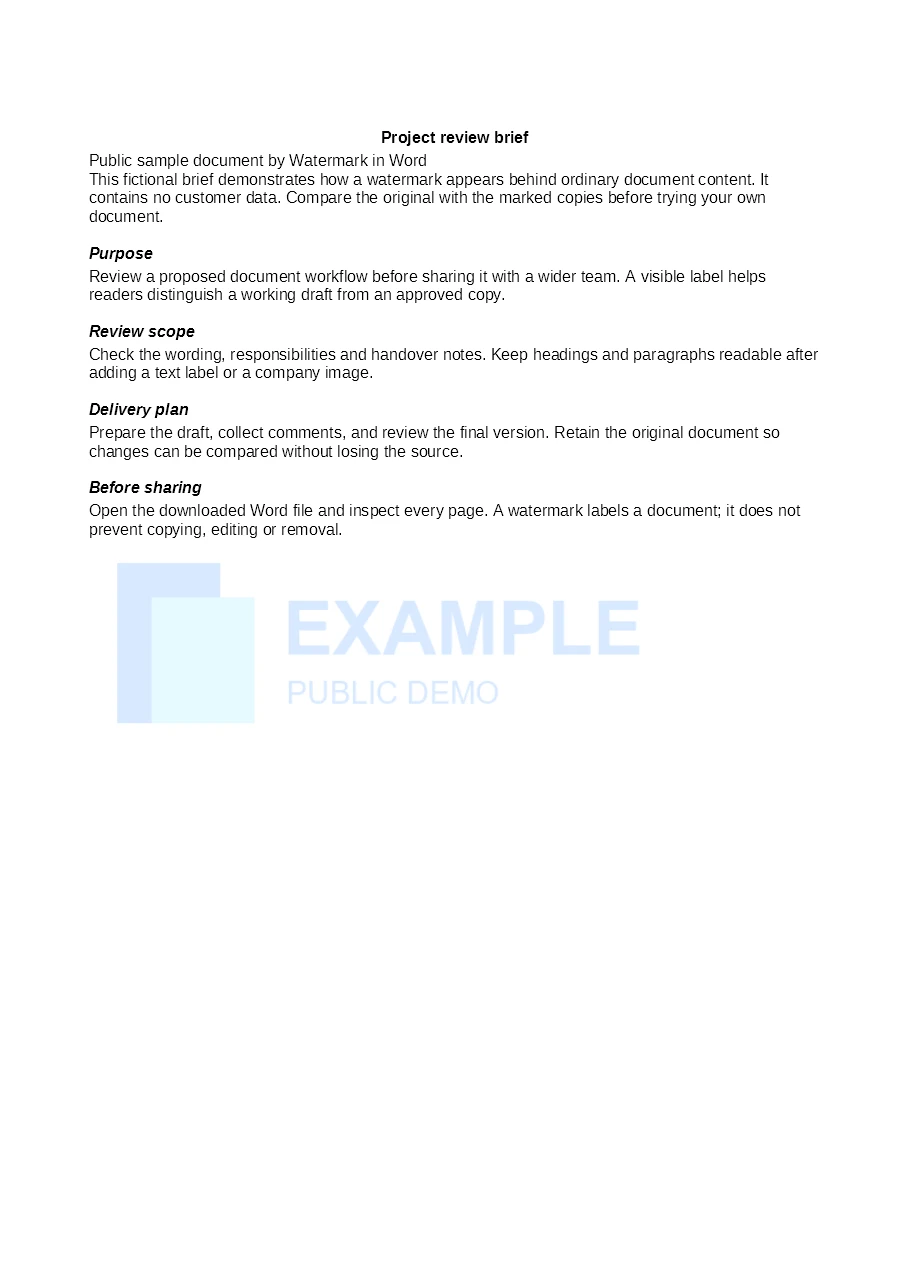
Download the logo example. These are rendered pages from converted files, not illustrations generated to suggest a result.
Plan for the one file that does not work
Batch processing should make partial success useful. If eleven documents succeed and one reports an incorrect password, keep the eleven successful results. After the batch ends, select Edit password for the failed item, correct its upload-row password and retry that file.
The retry uses the watermark settings from the original run and the current password for that record. It does not silently adopt a different design you have since entered into the controls. Start a new full conversion when you want to apply a changed design to the list.
A damaged file needs a different response: open and repair it in Word, or save a fresh DOC/DOCX copy and upload that replacement. Repeating the same damaged input is not a repair. For an interrupted or timed-out job, use a single-file retry when offered, keeping the successful outputs.
The red Cancel conversion button stops the active run. Completed results remain available; unfinished items can be retried after the batch stops. Keep the page open while it runs—closing it terminates the request. Removing files from the upload list also removes their displayed result records, so download what you need before clearing the workspace.
Important limits of the browser workflow
The preview is a sample. It does not render your uploaded pages or inspect their sections. The same design can look different on portrait and landscape pages, or behind large charts. Review representative pages in the actual Word output.
This is a shared-style batch. It does not assign a different recipient label to every file, process folders of unlimited size, or combine text and logo within the batch page. Split files into meaningful groups or use a more suitable editor or automation workflow.
Verification can be required. The homepage and batch tool share three initial submissions without verification; later submissions require a security check until the allowance resets after one hour without conversion requests. Individual retries also count as submissions. An expired or failed check does not discard the displayed work, but refreshing the page can clear the temporary workspace.
Files are uploaded. The current service is free and requires no account, but it is not an offline or device-only converter. Routine files use random storage names and are normally cleaned up about two to three hours after upload; cleanup may be delayed. Download links are temporary and should be kept private. Read the Privacy Policy and use an approved local workflow when documents must not be uploaded.
Before you share the batch
- Open at least a representative output from each document layout, then check the remaining files for obvious differences.
- Inspect first pages, later sections, tables, images and any landscape pages.
- Confirm the wording is correct and the watermark does not make body text difficult to read.
- Keep the originals and download all required copies before clearing the list.
- Check the output's protection settings separately if the input required a password.
For a small set of finished Word documents needing one consistent mark, the batch tool removes repeated setup while keeping individual results visible. For detailed page-level editing, stay in Word. For multiple designs on each document, use our full watermark editor. Choose the workflow around the files you need to deliver, then verify those files before sending them.