

Watermark in Word vs Microsoft Word: Which Should You Use?
Compare our online Word watermark tool with desktop Word: batch processing, text and logo controls, previews, privacy, file limits and practical trade-offs.
Adding DRAFT to a report should be straightforward. The best tool depends on what happens around that task: are you already editing one document, or do you need to apply the same label and logo to several finished files?
Use desktop Microsoft Word when you need to work on the actual document layout. Use Watermark in Word when you want a focused browser workflow for applying a saved set of watermarks to a small batch. Neither choice removes the need to check the finished pages.
We make Watermark in Word, so this comparison explains our product's limits as well as its strengths. It covers the website as available on October 11, 2026, and Word's documented desktop watermark workflow. Word for the web is a separate case, discussed below.
The differences at a glance
| What matters | Watermark in Word | Desktop Microsoft Word |
|---|---|---|
| Main job | Add watermarks to uploaded DOC/DOCX files | Edit the entire document, including its watermarks |
| Getting started | Open the website and upload files; the current tool is free | Open the document in an installed, licensed desktop app |
| Several documents | Main editor: five files with a saved set; batch page: 15 files with one shared text or logo | The ordinary ribbon workflow works on the open document; batch work needs repetition or separate automation |
| Text and logos | Standard and Custom modes, each with Text and Image choices | Built-in text and picture watermark options |
| Several marks | Up to five saved configurations, including at most one Standard watermark | More elaborate arrangements can use document objects and headers, with manual setup |
| Preview | Sample pages illustrate the settings | Inspect the mark on the actual document pages |
| Page targeting | Custom header/footer-type scope across sections | Direct access to sections, headers and document objects |
| Data handling | Files and any supplied passwords are sent to the service | A local document can be edited locally; cloud storage depends on your setup |
| After a failure | Correct and retry one file while retaining other results | Diagnose and revise the document in the editor |
The batch comparison is about the normal user interface. It is not a claim that Word cannot be automated with macros, add-ins or organization-specific tooling.
Where our online tool is useful
Apply one design to several files
Suppose you have three client proposals that all need the same review label and company logo. On the website, upload the three files, save the required watermark configurations and convert the batch. You do not need to recreate the settings separately for each document.
The main editor holds up to five documents, with a 5 MiB upload limit per file. The conversion applies the saved set to every file in that batch. If different recipients need different wording, process separate batches; there is no per-document watermark assignment in the current interface.

This is convenient for occasional batches, rather than a high-volume document processing system. It still requires an internet connection and time for upload, conversion and download. For one document already open in Word, staying there can be quicker.
For one shared text or logo watermark, the dedicated batch page handles up to 15 documents, also at 5 MiB each. It uses a compact settings area and shows each result as it finishes, with cancellation and individual retries after the run ends. It does not use the saved-configuration workflow described below. See the batch tutorial and batch workflow comparison.
Keep watermark controls together
Our Standard text mode provides familiar wording, font, color, layout and semitransparency controls. Font size can use Auto or a point value. Standard image mode covers a centered picture with scale and washout settings.
Custom mode is intended for more involved marks. Depending on the selected text or image type, it exposes positioning, rotation, opacity, repeated patterns, supported shadows and header/footer scope. Image controls also include dimensions, cropping, brightness, contrast and grayscale. The illustrated settings reference explains each control and its limits.

An important distinction: Custom text currently uses a width and height for its text shape, rather than the Standard mode's Font size control. Changing those proportions can stretch or compress the wording. Choose Standard for a simple label when point-size control is your priority; do not assume every control appears in both modes.
The font selector searches fonts available to the conversion service. It does not install a font on a recipient's computer, and it cannot guarantee identical rendering in every editor. Check the downloaded document with the fonts and software your recipients will use.
Review a saved set before converting
The website separates editing a watermark from running conversion. Add watermark saves a configuration. Ready to convert shows the saved set, with a preview for each item and controls to edit or delete it. Only Convert starts processing the files.
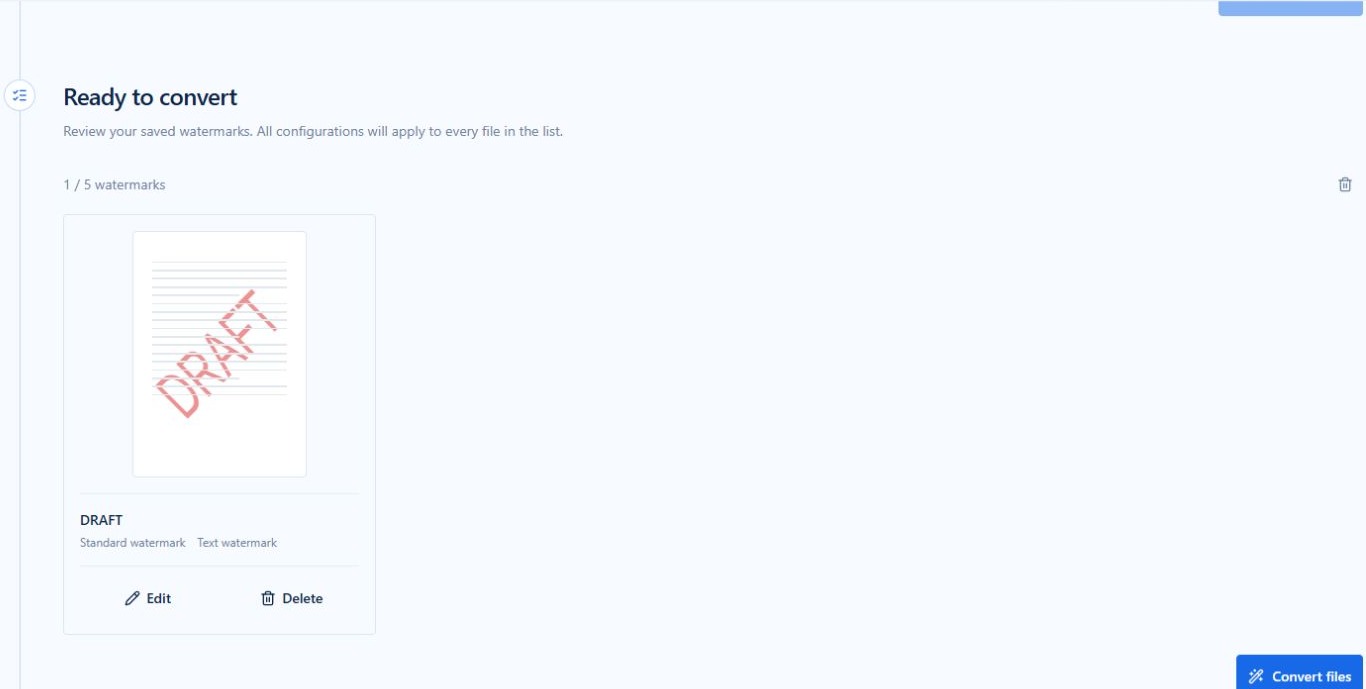
This helps when combining a label with a logo or repeating a mark. The limit is five saved configurations, with at most one Standard configuration; additional marks use Custom. It is a deliberate product limit, not a universal limitation of Word documents.
Recover from one failed file
Each input has its own result. A damaged file or incorrect opening password does not require you to repeat successful conversions. Update a password on the matching upload record and retry only that failed item.

Passwords belong to individual file records, including files with the same name. Local encryption detection is only a convenience: it can warn about a detected encrypted document, but it cannot promise to recognize every file or validate the password before conversion. An opening password is needed to process an encrypted document; the tool does not bypass encryption.
Where desktop Word is the stronger choice
See the real pages while you work
The biggest distinction is the preview. Word lets you examine the watermark against the document's actual paragraphs, tables and images. Our Style preview uses sample pages; it does not render your uploaded document or discover its page breaks.
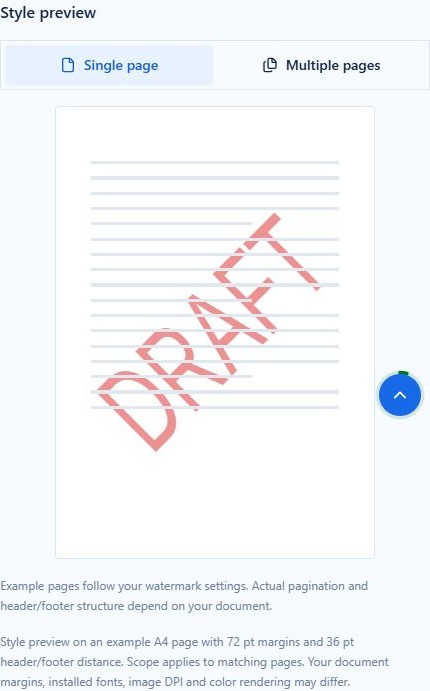
For a complex report, a faint mark that looks suitable on a sample can intersect a chart or disappear behind a picture in the real file. Word is the better place to make those page-specific judgments and adjust surrounding content. With the website, download the output and inspect it in your document editor before distribution.
Work on unusual sections and individual pages
Our Custom scope control targets header/footer types, such as first-page, primary or even-page types. It is not a field for arbitrary page numbers. “First-page type” refers to that type within sections, so it should not be read as “only page 1 of the entire document.”

If the requirement is “put this mark only on page 7,” Word's document-level controls are usually the clearer starting point. Microsoft documents a one-page watermark workflow. Complex section arrangements still need care, but you can inspect their real structure rather than infer it from a sample preview.
Edit content and watermarks in the same place
If a proposal still needs wording changes, table adjustments or pagination work, Word keeps that work together. The website is a watermark tool, not a full Word editor. It does not replace document drafting, tracked revisions or final layout review.
For a basic desktop watermark, the Windows path is Design → Watermark. Use a preset, or open the custom dialog for your own text or picture. Microsoft documents insertion on Windows and Mac and custom watermark options. The exact interface varies by version.
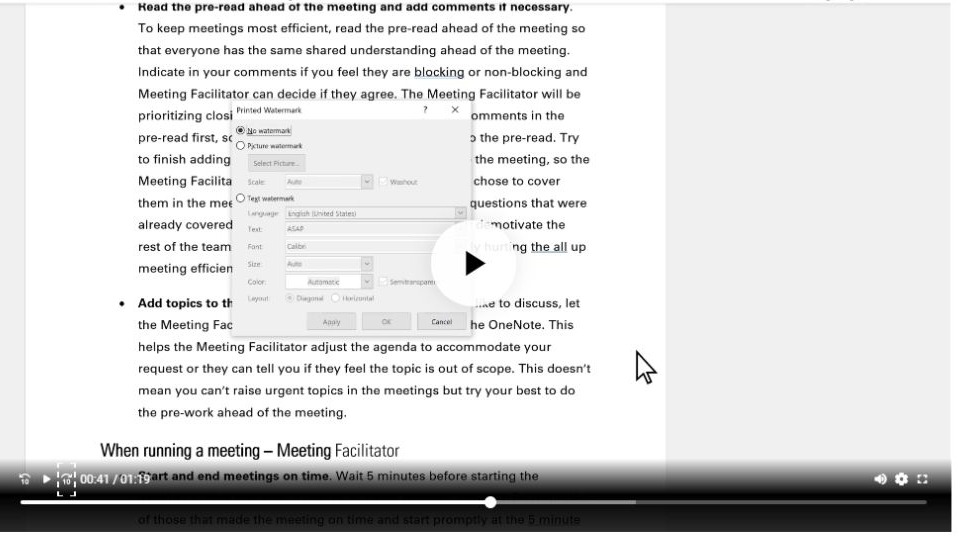
For a single document already open in Word, that short workflow can be the most convenient option. See our illustrated Word tutorial for the full sequence.
Privacy, connectivity and cost
The current website is free to use. You do not need desktop Word installed to submit a conversion, although a compatible editor is useful for checking the output. If you already have desktop Word, using its watermark feature does not mean buying a separate watermark product. We do not claim a fixed cost saving: the comparison depends on the license and tools you already have.
The website processes files on a server. It is not browser-only processing, even though you operate the controls in a browser. Documents, watermark images and supplied opening passwords are sent to the service. Local Word editing can avoid that additional upload when files remain local and cloud features are not involved.
Files use random storage names. Routine uploads, watermark images and results are temporary, normally cleaned up about two to three hours after upload; cleanup may be delayed. Anyone with a download link may be able to access the file, so keep links private and download results promptly. See the Privacy Policy.
For documents that must stay inside an approved local or organizational environment, use that environment. A random storage filename is not a reason to ignore your organization's data-handling rules.
What about Word for the web?
Do not confuse desktop Word with its browser version. According to Microsoft's current support instructions, Word for the web displays existing watermarks but does not insert or change them. The documented route is to open the file in desktop Word.
Our website offers another browser-operated route for supported DOC/DOCX files: download a copy, upload it, apply your marks and download the result. That convenience comes with the upload and preview limitations described above. It is not a Word for the web extension and does not edit the file in place in your Microsoft account.
Three situations, three practical choices
Several finished proposals need the same label. The online batch workflow is a good fit if the files meet the limits and may be uploaded. Save the label once, convert together, then check each result. The same settings can look different on portrait and landscape pages.
A long report needs marks on selected pages. Work in desktop Word, where you can inspect sections and page content while making changes. Our header/footer-type scope is not a replacement for a page-range editor.
An occasional user has no desktop Word installation. The website provides a focused route to adding text or logo watermarks. Start with one non-sensitive file and inspect the result in a compatible viewer or editor before using the same settings on the rest.
What neither approach guarantees
A watermark communicates status, ownership or intended use. It does not encrypt a document, stop copying or make the wording legally enforceable. Someone with editing access may be able to change or remove it. Use appropriate access controls when you need protection beyond a visible label.
Neither a sample preview nor a successful conversion is a substitute for reviewing the final file. Check first pages, later sections, tables, images and any unusual layouts. Keep your original separately, and do not assume a password supplied for opening an input means the downloaded output has the same protection.
Choose the workflow that fits the document
Choose Watermark in Word for a small batch, a shared watermark set and independent file retries. Choose desktop Word for detailed page inspection, broader document editing and local workflows. You can also combine them: apply the batch online, then use Word for final review.
Start with the online upload tool, follow the step-by-step guide, or download our real watermark examples to inspect actual output before deciding.
Microsoft Word screenshot: Used with permission from Microsoft. Source: Microsoft Support video. This website is not affiliated with or endorsed by Microsoft.